Guide
AI Prompt Debugging Checklist: What I Check When Results Break
When your AI prompt breaks, changing random things wastes credits and teaches you nothing. Here's the exact diagnostic checklist I run to find the real problem fast.
Published May 6, 2026
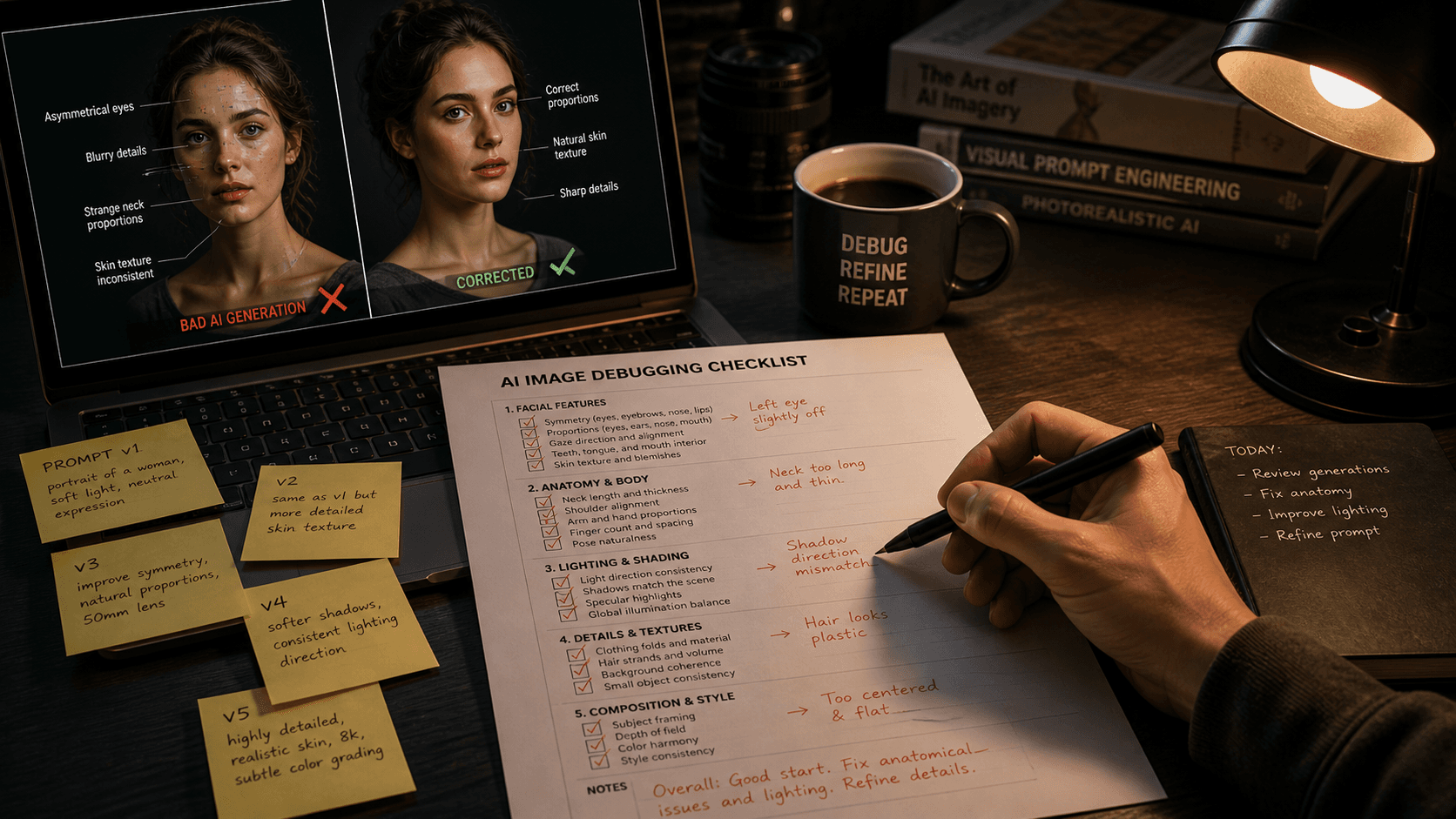
Two weeks ago I handed off a batch of product shots to a client and one image in the set had a subtle but definite problem — the product label had a word that was almost right but slightly garbled, the kind of thing that reads correctly at a glance but falls apart under inspection. I had run that exact prompt twenty times before with clean results. Nothing in my setup had changed.
I spent forty minutes changing things at random. Different phrasing. Different parameter values. Running it again. Getting results that were mostly fine but occasionally broken in the same specific way, for reasons I could not pinpoint.
Then I stopped, pulled up my debugging checklist, and ran through it sequentially. Found the issue in about eight minutes. A model update had shifted how one of my token phrasings was being interpreted, and a secondary token further down the prompt was now conflicting with it in a way it had not before.
That checklist has saved me more time and credits than any other tool in my workflow. Here is the full version.
Why Random Iteration Is the Wrong Debugging Strategy
The instinct when something breaks is to change the thing that seems most likely to be causing the problem. This feels productive. It is not. It is guesswork at scale.
The core problem with undirected iteration is variable contamination. When you change two or three things simultaneously to fix a broken output, you have no idea which change fixed it — or whether all three were actually necessary, or whether one of them introduced a new problem you have not noticed yet. You burn credits, accumulate a pile of marginally different generations, and end up with a prompt that works but that you cannot explain. The next time it breaks, you are back to square one.
Systematic debugging works on a different principle: isolate one variable at a time and test it independently. This is standard practice in software development. A prompt is, functionally, a configuration file for an image generation system — it should be debugged the same way you would debug code.
The checklist below is structured in order of likelihood. The most common failures come first. Work through it sequentially rather than jumping to whatever feels most plausible.
The Debugging Checklist
Check 1: Is the Failure Consistent or Intermittent?
This is the first and most important diagnostic question, and most people skip it.
Run the exact same broken prompt four to six times without changing anything. Document what percentage of generations show the failure.
- 100% failure rate → The problem is in the prompt structure, a conflicting token, or a syntax error. It is deterministic and fixable.
- 30–70% failure rate → The problem is in an underspecified layer that the model is filling inconsistently. The fix is adding specificity to the layer that is varying.
- Under 20% failure rate → The problem may be inherent model variance rather than a prompt issue. Evaluate whether this failure rate is acceptable for production, or whether you need tighter constraints.
Running this test takes three minutes and immediately tells you whether you have a structural problem or a statistical one. They require completely different fixes.
Check 2: Run /shorten and Look at Your Token Weights
If the result is consistently wrong in a specific visual way — wrong style, wrong composition, subject being overridden — there is almost always a high-weight token dominating the generation unexpectedly.
Run /shorten on the failing prompt. Look at which tokens are scoring 0.7 or above. Then ask: are any of these tokens pulling the image in the wrong direction? Common culprits are style-adjacent adjectives placed early in the prompt (elegant, luxury, cinematic, dramatic), historically loaded style names (Art Nouveau, Baroque, cyberpunk), and artist name references.
Broken prompt — subject keeps rendering in painterly style despite being a photography brief:
elegant luxury perfume bottle, ornate glass design, rich warm tones, botanical elements, professional photography, white background, product shot --ar 1:1 --style raw
Fixed prompt — offending tokens identified via /shorten, repositioned and weighted down:
perfume bottle product photography on white background, clear glass cylindrical bottle with gold metallic cap, single overhead softbox 5600K, clean specular highlight on glass surface, botanical label print::0.5, elegant::0.3, 100mm macro f/5.6, commercial product photography --ar 1:1 --style raw --hd
The issue in the bad prompt was ornate, rich warm tones, and botanical elements clustering together early — a combination that pulled heavily toward illustrated or painted aesthetics. Repositioning and weighting down those tokens let the photography-specific tokens take control.
Check 3: Check for Conflicting Instructions
Two tokens giving the model contradictory physical instructions is one of the most common silent failure modes. The model does not throw an error — it just produces something incoherent that satisfies neither instruction.
Common conflict patterns:
shallow depth of field+full background in focus— contradictory optics
dark moody atmosphere+bright airy editorial— contradictory lighting registers
minimalist background+richly detailed environment— contradictory scene density
photorealistic+illustration styleorpainted— contradictory rendering mode
close-up portrait crop+full body visible— contradictory framing
Read through your prompt and physically check each descriptive pair for physical compatibility. If two instructions cannot be simultaneously true in a real photograph, they cannot be simultaneously true in a generation.
Check 4: Verify Your Parameter Syntax
This one sounds trivial. It catches real issues more often than it should.
Parameter syntax errors fail silently in Midjourney — the generation runs, but the parameter is simply ignored. Check the following:
- Double hyphens before every parameter:
--ar,--seed,--c,--style, not-aror—ar
- Aspect ratios using colon notation, not slash:
--ar 4:5not--ar 4/5
- Seed as a plain integer:
--seed 3847291not--seed #3847291
- Chaos value within 0–100 range:
--c 150does nothing useful
- No text inside parameter values:
--ar portraitis not a valid aspect ratio
On the Midjourney web interface, check the parameter display panel after submitting — it shows which parameters were recognised. If a parameter you entered is not showing up there, it was rejected.
Check 5: Test Whether the Model Version Changed Your Output
Model updates change how prompts are interpreted — sometimes significantly. A prompt that worked consistently on v7 may behave differently on v8.1 due to changes in prompt adherence, token weighting, or default style bias. Midjourney does not notify you when your default model version is updated.
Check your current default model version in the settings panel. If your previously-working prompt has started failing after a period of reliable performance, pin the model version explicitly:
Before (relies on default model, vulnerable to version drift):
cinematic portrait of a man in dark blazer, dramatic side lighting, photorealistic --ar 4:5 --style raw
After (model version pinned, behaviour locked):
cinematic portrait of a man in dark blazer, dramatic side lighting, photorealistic --ar 4:5 --style raw --v 8.1
This is particularly important in client work. If you built and approved a visual style on one model version, that style needs to be reproducible on demand. Pinning the version ensures the prompt does not silently drift when Midjourney updates their default.
Check 6: Isolate the Problem with a Stripped Prompt
If Checks 1–5 have not identified the issue, the problem is somewhere in a complex interaction between multiple prompt elements that is difficult to see by reading. The fix is to strip the prompt down to a minimal version and rebuild it one layer at a time.
Start with only the Subject layer. Generate. Does that work? Add Subject Modifiers. Generate again. Does it still work? Continue adding one layer at a time until the failure reappears. The layer whose addition triggers the failure contains the problem token.
Full failing prompt:
photorealistic portrait of a South Asian executive, dark blazer, gold watch detail, confident expression, elegant boardroom background with city view, warm Rembrandt lighting, 85mm f/2, commercial photography --ar 4:5 --style raw
Stripped to Subject only (baseline test):
photorealistic portrait of a South Asian executive --ar 4:5 --style raw
Add one layer per run until failure reappears:
photorealistic portrait of a South Asian executive, dark blazer, gold watch detail, confident expression --ar 4:5 --style raw
In the example above, gold watch detail combined with elegant boardroom background with city view was creating a token conflict that pushed the model toward an overly rendered, almost illustrated aesthetic. Neither token alone caused the issue. Together, their associated training data clusters overlapped in a way that broke the photorealism grounding. Identifying that required the strip-and-rebuild process.
Real-World Gotchas — My Personal Take
The strip-and-rebuild method costs credits, but less than undirected iteration. Running eight to twelve incremental test generations to find one problem token is frustrating. It is still faster and cheaper than running forty random variations hoping something improves.
Flux and Midjourney fail differently. On Midjourney, the failure mode is usually aesthetic drift — the result looks good but wrong. On Flux, the failure mode is more often literal misinterpretation — you asked for X and got something adjacent but physically incorrect. The same checklist applies to both, but the symptoms look different. Recognising which type of failure you are dealing with speeds up the diagnosis.
Keep a failure log. I have a simple Notion table where I log recurring failure patterns: the prompt fragment that caused the issue, which model version, and what the fix was. After six months of logging, I have a personal reference of every token combination that behaves unexpectedly. That library is worth more than most prompt engineering guides I have read.
Conclusion
When a prompt breaks, the fastest path to a fix is not iteration — it is diagnosis. Work through the checklist sequentially, test one variable at a time, and stop when you find the problem rather than continuing to change things after it is solved. The AIPromptHub gallery documents expected outputs alongside tested prompts, which makes it a useful external reference when you need to verify whether a specific visual result is achievable with your current setup or whether your expectations need calibrating.
Sonnet 4.6Adaptive